
The Bulk Edit COGS feature allows you to update cost data for multiple products or variants at once. This is especially useful when you want to standardize costs, apply tiered pricing, or change how costs are tracked across your catalog.
This article explains:
-
How to bulk edit COGS
-
How to change the cost level (Product-Level vs Variant-Level)
-
What happens after you apply changes
What Is Bulk Edit COGS?
Bulk Edit COGS lets you:
-
Select multiple products at once
-
Apply the same COGS structure to all selected items
-
Instantly update profit calculations for future orders
All changes apply only to future profit calculations. Historical data is not affected.
Step 1: Select Products to Edit
-
Go to Products → COGS Management.
-
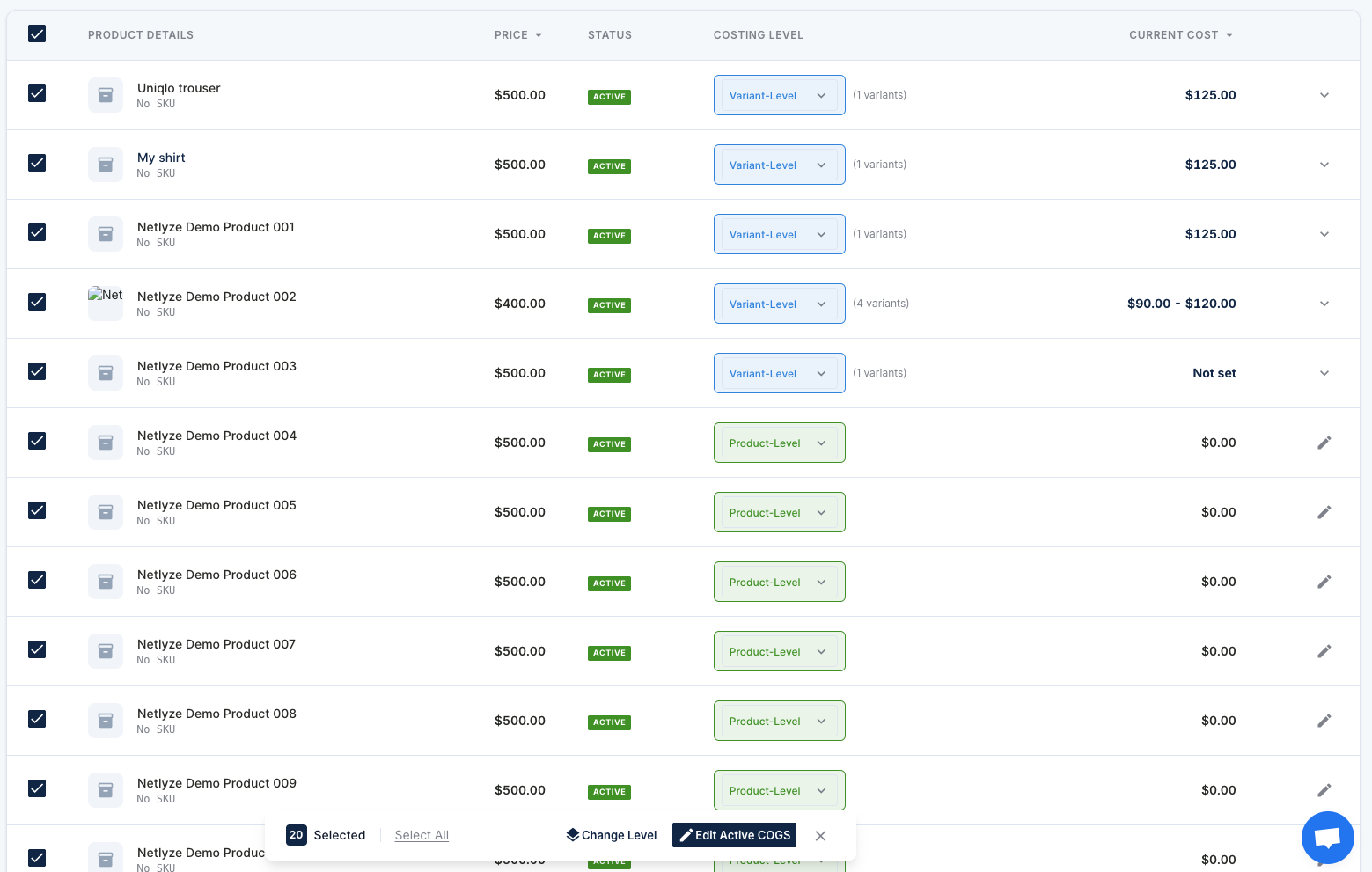
Use the checkboxes to select one or more products.
-
Once items are selected, a bulk action bar will appear at the bottom.
-
Click Edit Active COGS or Change Level.
Step 2: Choose Cost Level (Product-Level vs Variant-Level)
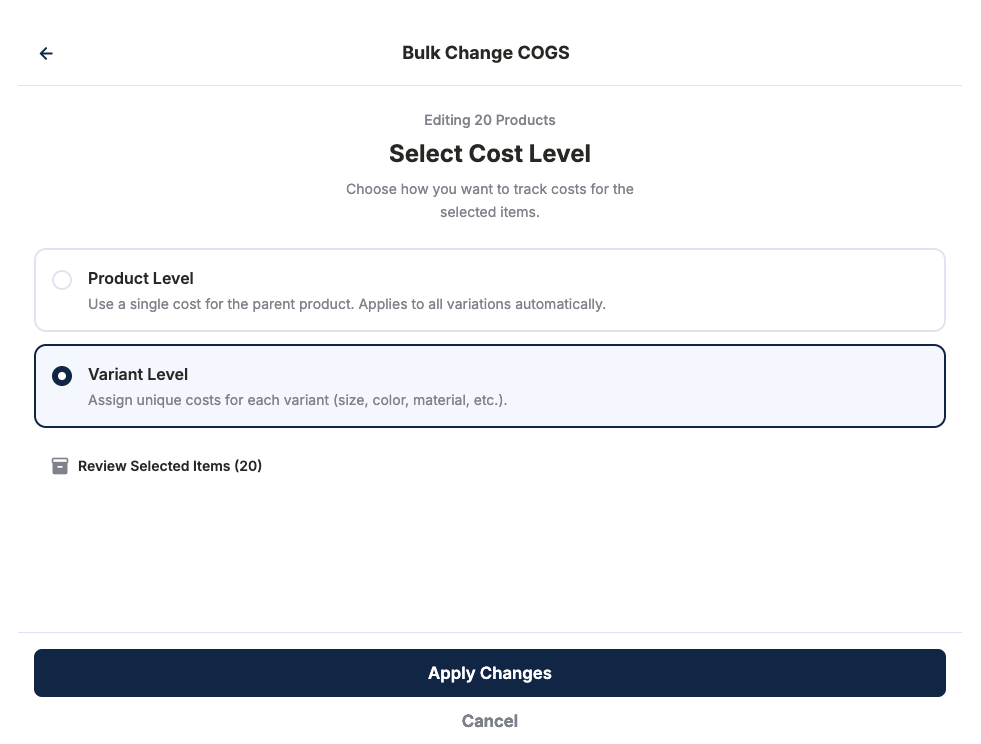
When editing multiple products, you must choose how costs are tracked:
Product-Level
-
One single cost applies to the parent product
-
Automatically used for all variants
-
Best for products where all variants have similar costs
Variant-Level
-
Each variant has its own cost
-
Supports size, color, material, or supplier differences
-
Recommended when variant costs vary
Once selected, click Apply Changes to continue.
⚠️ Important:
Changing the cost level may overwrite existing active COGS for selected items.
Step 3: Bulk Edit COGS (Tiered Pricing)

After choosing the cost level, you can define Tiered COGS.
How Tiered Pricing Works
Tiered COGS allows different costs based on quantity purchased.
Example:
-
Quantity ≥ 1 → $10.00
-
Quantity ≥ 5 → $8.50
-
Quantity ≥ 10 → $7.00
To configure:
-
Enter the Quantity Break (minimum quantity).
-
Enter the Cost (USD) for that tier.
-
Click + Add Tier Break to add more tiers.
-
Remove tiers if needed.
These tiers will apply to the active cost structure of all selected items.
Impact Summary (Before Applying)
Before saving, you will see an Impact Summary that shows:
-
How many products or variants will be updated
-
Confirmation that existing active COGS will be replaced
-
Notice that profit margins will update for future orders
Review this carefully before proceeding.
Step 4: Apply Changes
-
Click Apply Changes.
-
The system will:
-
Update active COGS for selected products/variants
-
Recalculate profit for all future orders
-
-
You will immediately see updated COGS values in the product list.
What Happens After Bulk Editing?
-
✅ New orders use the updated COGS instantly
-
✅ Profit & margin reports reflect the new costs
-
❌ Past orders are not recalculated
If a product has no explicit COGS set, the system will fall back to your Default COG Rate (if configured).
Best Practices
-
Use Product-Level for simple catalogs or flat pricing
-
Use Variant-Level for apparel, POD, or multi-supplier products
-
Double-check tiered pricing to avoid accidental margin loss
-
Start with a small batch if you’re unsure, then scale up