
Overview
The Shipping Cost feature allows you to define how shipping costs are calculated for your orders — specifically for profit tracking.
This is not your checkout shipping setting.
Instead, it is used to:
- Calculate profit per order
- Recalculate historical profit accurately
- Control cost logic across zones, products, and time
How Shipping Cost Works
For each order, the system determines shipping cost using this logic:
- Identify the shipping zone based on destination country
- Check if the product has a custom override in that zone
- If yes → use override
- If not → use zone default cost
- Apply calculation (quantity-based or weight-based)
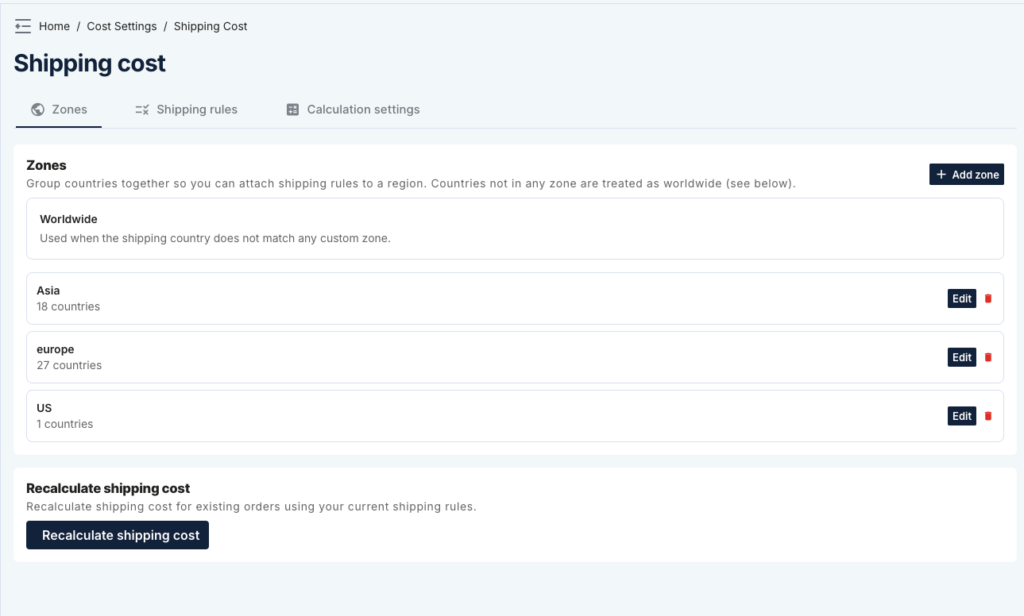
Step 1: Create Shipping Zones
Path: Shipping Cost → Zones
Shipping zones group countries together so you can apply cost rules.
Example:
- Asia → Vietnam, Thailand, Indonesia
- Europe → Germany, France
Notes:
- Orders are matched to zones based on shipping country
- If no zone matches → Worldwide is used
Step 2: Configure Shipping Cost Rules
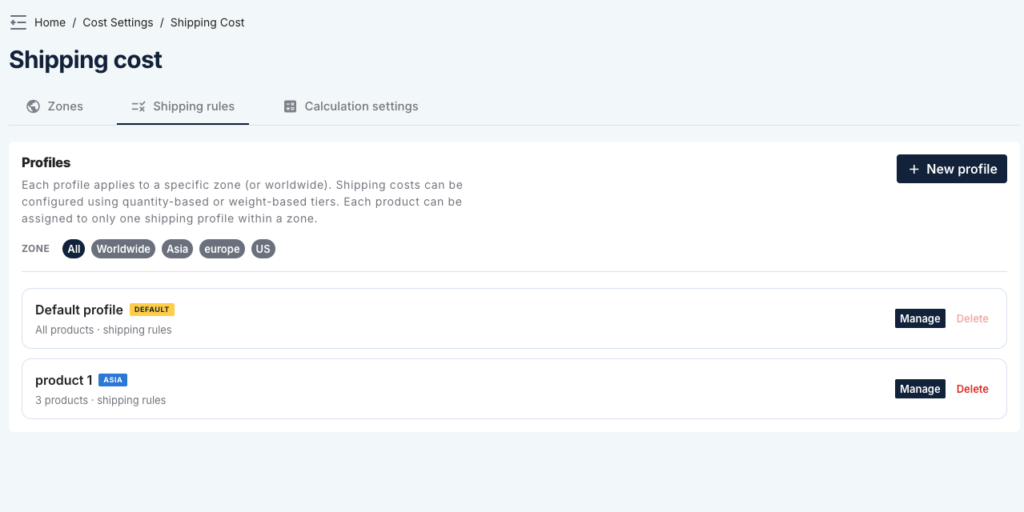
Path: Shipping Cost → Shipping rules
You will manage shipping cost through profiles.
What is a Profile?
- Defines which products it applies to
- Belongs to a specific zone
- Contains shipping cost logic
Step 3: Create a Shipping Profile
- Click New profile
- Enter:
- Profile name
- Zone
- Click Create profile
- Click Manage to configure
Step 4: Assign Products
Inside the profile, assign products to this profile.
Important:
- Each product can belong to only one profile per zone
- If not assigned → product uses default profile
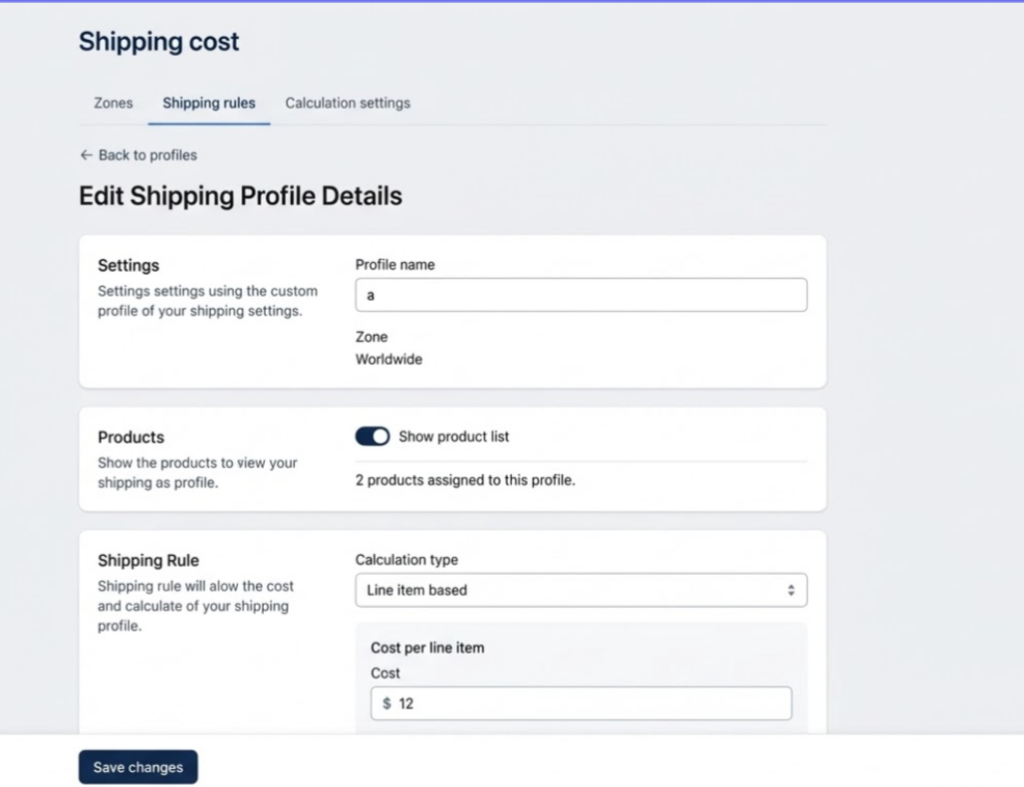
Step 5: Configure Shipping Cost
1. Calculation Type
Quantity-based
- Shipping cost depends on number of items
- Example: 1 item = $5, 2+ items = $8
Weight-based
- Shipping cost depends on total weight
2. Pricing Tiers
Define tiers using minimum value and cost:
| Min Qty | Cost |
|---|---|
| 1 | $20 |
| 2 | $22 |
Step 6: Multi-item Calculation
Path: Shipping Cost → Calculation settings
Choose how shipping is calculated for multiple items:
Sum All Line Items
- Add shipping cost of each product
- More accurate for profit tracking
Use Highest Cost
- Only use the highest shipping cost
- Simpler but less precise
Step 7: Recalculate Shipping Cost
After updating rules, click:
Recalculate shipping cost
This will:
- Recompute shipping cost for existing orders
- Update profit calculations
Important Notes
1. Not used for checkout
This feature is only for profit analytics, not customer-facing shipping.
2. Historical impact
If you change shipping cost rules, existing orders may be recalculated and profit may change.
3. Product overrides
If a product belongs to a specific profile, that profile overrides default cost.
Best Practices
- Start with a default profile for all products
- Only create additional profiles when necessary
- Use quantity-based for simplicity
- Use weight-based for accuracy
- Always recalculate after major changes
Summary
Shipping Cost in this system is a:
Profit calculation engine
It helps you answer:
“What did it actually cost to ship this order?”